
Admin Info
EN | Administrator Guide for Configuring the UPPS! Extension Links Synchronizer (LS)
Overview
Who is this documentation for?
This documentation is intended for system or project administrators responsible for configuring the UPPS! Extension Links Synchronizer (LS).
Prerequisites
Before reading this documentation, you should be familiar with basic Polarion project administration.
What you will learn
After reading this documentation, you will be able to active, and configure the behavior and functionalitybehaviour of the Links Synchronizer for specific projects individually.
Overview of Links Synchronizer
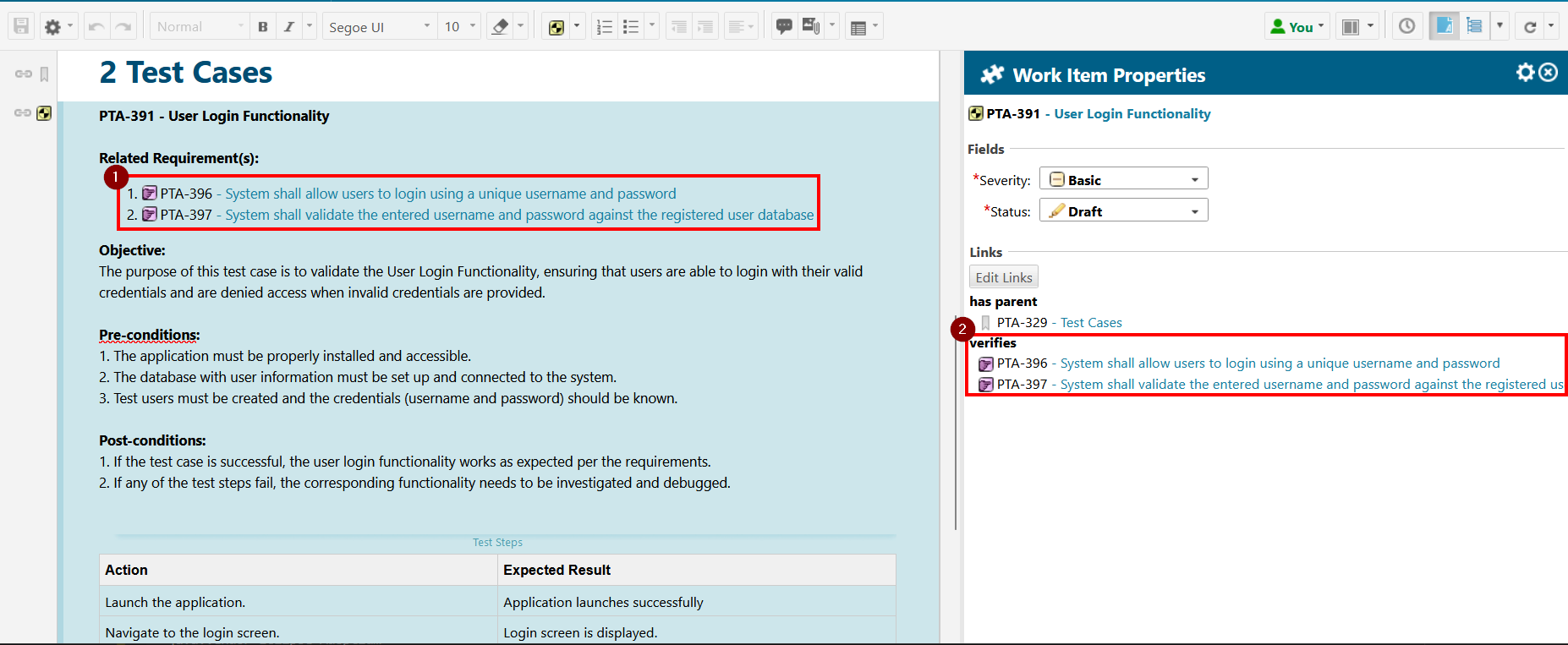
The Links Synchronizer automatically manages Work Item links. It scans the description of a Work Item being saved and ensures that any Work Items referenced via a Polarion Cross-Reference, Polarion Live Link, or Hyperlink receive a corresponding Work Item link, according to a predefined configuration.
Configuration
Introduction
The Links Synchronizer extension can be configured by any of the following two options:
- Configuration page — accessible in each Polarion project, this lets you specify how the extension should behave for that project. Once configured, the link roles of every Work Item saved in that project are automatically managed according to the configuration.
- Polarion job — applies the configuration across all projects for which the extension is enabled. Use this primarily to synchronize existing Work Items whose link roles have not yet been processed, or after making changes to the Link Synchronizer configuration.
It is strongly recommended that you test this feature in a non-production environment before using it in production. The extension adds and removes link roles across multiple work items, potentially spanning different projects, depending on how the work items are linked and how the extension is configured.
Configuration via Configuration Page
LS customization takes place separately for each individual Polarion project. Administration permission is required for doing this.

Click the Administration button, navigate to the UPPS! Extensions entry, and open the drop-down menu.
Eventually, click the Links Synchronizer button to open the customization page.

At the very top of the LS customization page you see the following options and information:

Even if you save customizations made using this page by clicking the SAVE CONFIGURATON button nothing will change or happen in your Polarion project as long as you did not mark the Enable extension for this Project check box.box
Customizing
Extra Fields Config
Contains specific configurations to control the behavior of the extension depending on the configuration and content of a WorkItem.

- Scan for Workitem references in TestSteps Field.
Enabling this may incur a significant performance penality in the execution of the Links Synchronizer job.
This is due to the TestStep content currently being processed on the Java-level which takes significantly more time to process compared to SQL. - Resolved Workltems are by default not processed.
Enabling this option will scan for Workitem references in Workltems that are configured with a direct link rule and set the appropriate link role even if it is resolved, i.e has a resolution value set.
Due to performance reasons, permission to modify Workltem links are not checked. Enable this option if you permit Workltem links to be modified on resolved Workltems. - Resolved Workitems are by default not processed.
Enabling this will scan for Workttern references in Workitems that are configured with a backlink rule and set the link role on the other Workitern even if it is resolved, i.e has a resolution value set.
Due to performance reasons, permission to modify Workitem links are not checked. Enable this option if you permit Workitem links to be modified on resolved Workitems.
Extra Link Config
Backlink Revision Action
Polarion links can only reference a revision of a target WorkItem in a direct link and do not have the ability to do so with a backlink. So if a reference with a revision is added in the description of a source WorkItem, an action must be defined how the Links Synchronizer should behave when a reference with a revision is added and a backlink configuration would apply.

All Types
A general configuration that is used to create a link to a referenced WorkItem in a description. The rules set up here are used if no type-specific configuration has been set up for a WorkItem whose description is being evaluated or no type-specific filter could be applied.
Typed Configuration
A type-specific configuration used to link to a referenced WorkItem in a description. The rules set up are only used if a type-specific configuration has been set up for a WorkItem whose description is being evaluated and a type-specific filter applies.

Rule
A rule contains the information which link role should be used under which conditions. It contains a link role, a target project and target WorkItem types are specified on the left side of the rule. The target WorkItem types can be left empty if the target type is not relevant for that rule. In addition, the reference data types to the right of the rule for which the corresponding link role is to be used are also specified for these conditions.
Rule Priority
The number on the leftmost side of each rule in the general configuration or in any of the typed configuration indicates the order in which each rule is used to match a WorkItem reference and indicates which link role will be used if the sprcific rule configuration applies. You can change the order of the rules by using the up and down buttons to switch with the rule above and below, respectively.
Type Fallback
This configuration checks the "All Types" configuration as a fallback option. If it is not active, nothing is done if no rule applies, or links are removed that would otherwise match an "All Types" configuration.

Reserved Link Roles
A set of link roles used exclusively for this extension. All link roles listed in this section (automatically and manually set link roles) are matched with referenced WorkItems in the description of any WorkItem in the current project and handled according to the filters set above. Depending on whether a filter can be applied to referenced WorkItems and the associated link, the link will either be set, removed, or updated if changes need to be made.
It is strongly recommended to use only link roles that are used exclusively for this feature, since links are also removed when a reference is removed from or not found in a description.
Reference Data Type
Polarion differentiates between following reference data types with which workitems are embedded in a description.
-
Cross References:
Cross References are special Polarion hyperlinks used to quickly navigate to the referenced WorkItem within a LiveDoc. They can be identified by the dashed underline under the WorkItem reference and can contain the outline number, type icon, id or title of the referenced WorkItem. A user-defined label may also be specified. Clicking such a link will shift the LiveDoc view into position of the referenced WorkItem.
-
Live Links:
Live Links are special Polarion hyperlinks used to reference any WorkItem within a Polarion repository. It can contain the type icon, id or title of the referenced WorkItem. A user-defined label may also be specified. Clicking such a link will open the WorkItem in the Tracker view.
-
Hyperlinks:
Hyperlinks behave like commonly known hyperlinks. These hyperlinks are by default displayed with their URL or alternatively with a user-defined label. In order for the extension to work for these hyperlinks, their URL must contain the base.url value of the polarion.properties configuration (the URL to the same Polarion server). Clicking such a link will open the URL in the same or a new browser tab.
Backlink

Sets the link in the other Workitern and not the one that has the reference in the description, creating a backlink.
- If the created link on the other Workitem is deleted manually, the change cannot be detected by the Workiterm that references that Workiterm and the link will stay missing. This is a common technical hurdle arising from the use of backlinks. A regular update of all Workitems by the LS Job is therefore recommended.
- If the other Workitem is in a foreign project, conflicts may arise between the LS configuration of the foreign project and this LS configuration.
- There may also be problems with users who have different permissions in the respective projects that affect reading or writing Workiterns.
- A revision of a Workitem reference is not supported for backlinks and is therefore not created by the extension, as the resulting state would be invalid.
CAUTION:
The following lists caveats in the Links Synchronizer extension that are not implemented due to technical difficulties or may incur significant performance penalities.
- Validation of Link Synchronizer Configurations between 2 or more Projects.
There is no validation checking a Links Synchronizer configuration against a Links Synchronizer configuration of another project. This means that a rule can be set up that is complementary to another rule in a configuration of another project. For example, one project may be set up to create a link, while the other project containing the target WorkItem may attempt to delete that link. - Missing permissions to read a target WorkItem.
If a user does not have permission to read a WorkItem that is the target of a Reference or Link, the Links Synchronizer cannot read the required information (e.g. WorkItem Type) to check whether a link needs to be set or removed. Therefore, references and links to WorkItems that are not readable by the user are skipped. - Missing target WorkItem of a Link or Reference.
The Links Synchronizer treats missing or incorrect WorkItems as if the user had no permission to read the required information (see above). So if a target WorkItem of a Reference or Link does not exist, it will be skipped.
Configuration Customizingvia recommendedPolarion when using AM-PACK
Job
This section outlinesAdd the recommendedfollowing configurationsscheduler forjob AM-PACKconfiguration projects,via whichGlobal areAdministration designed> Scheduler and configure it as needed.
  <!--
    Processes workitems in all projects with an enabled UPPS!E Links Synchronizer configuration
    to ensure seamlessthat integrationthe andworkitem functionalitylinks ofalign with the Links Synchronizer withconfiguration.

    AM-PACKProperties:
      - userVaultKey:
          The key identifying a user account in the Polarion user account vault.
          The job will then execute as the specified user.
          Ensure that this user has permission to modify workitems in all projects.

          ThesePossible configurationsvalues: Key of a user specified in the User Account Vault
          Optional: If the job is executed manually through the Polarion Monitor interface.
          Required: If the job is executed automatically via cron-job.

      - batchSize:
          The number of workitems that will be processed before a commit to the svn repository will occur.
          Due to technical circumstances, committing a large amount of changes may render the system unstable or unusable.
          A batch size is therefore specified that will divide workitems changed by the Links Synchronizer into commit groups
          up to a maximum of ${batchSize} workitems.

          Possible values: Any integer greater than 0
          Optional: Default value is 500 workitems.

      - showUpdatedWorkItems:
          Specify whether to explicitly list all workitems in the job log by their id that were updated.
          The job log will print a lucene query with all updated workitems so that you can list them in the workitem tracker.

          Possible values: true or false
          Optional: Default value is false.
  -->
  <job
      disabled="true"
      id="upps.links.synchronizer.job"
      name="UPPS!E Links Synchronizer: Ensure sync"
      scope="system">
      <!-- <userVaultKey></userVaultKey> -->
      <!-- <batchSize>500</batchSize> -->
      <!-- <showUpdatedWorkItems>false</showUpdatedWorkItems> -->
  </job>
Starting the Job
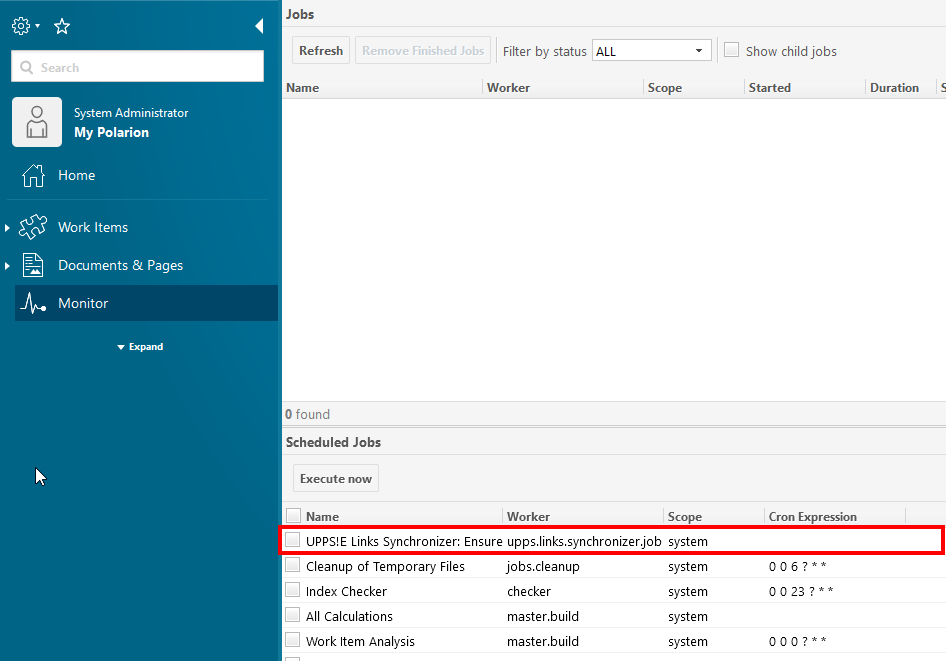
Once you have configured the LS job, it appears as an entry in the Monitor.
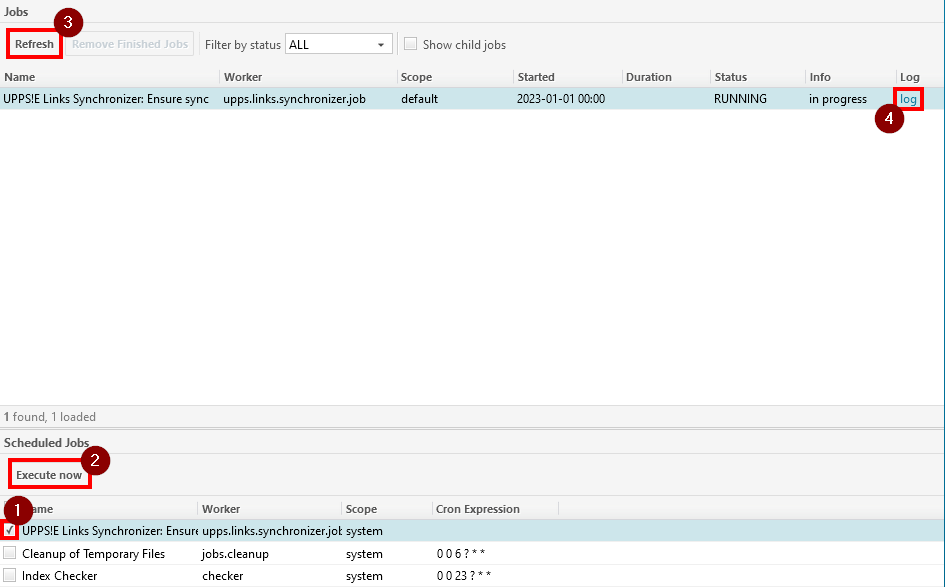
Start the LS job by checking the box next to it (1), then clicking Execute now (2). You can refresh the job view (3) to check the current status. For detailed information about the job process, view the log (4).
If the userVaultKey job property is not configured, the job runs as your currently logged-in user. Work item changes and the permissions required to make them are alreadyevaluated presetbased toon manageyour specificuser link roles between designated WorkItems, providing an optimized setup for handling linksaccount and referencesyour uniquepermissions toin AM-PACKeach workflows.project.
Extra
After Fieldsthe Config:job

Linksuccessfully, roleyou supports/can review the updated work items if the showUpdatedWorkItems property is supportedenabled. by
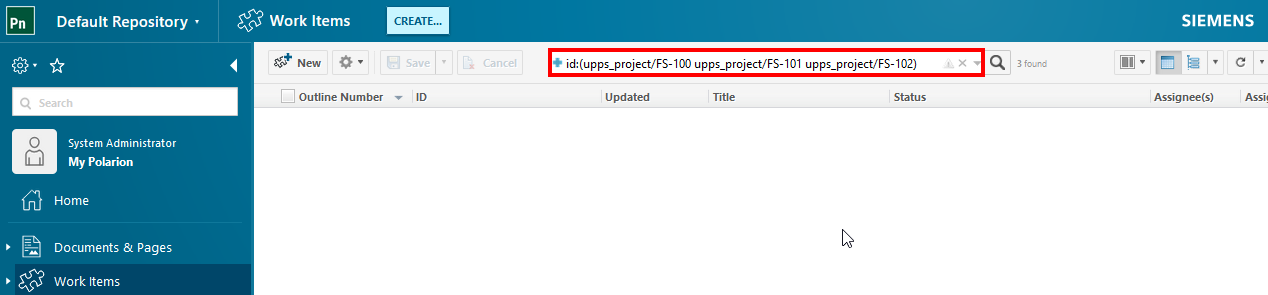
If Forany work items were updated, the job log will contain the following WorkItems:
Functionentry:
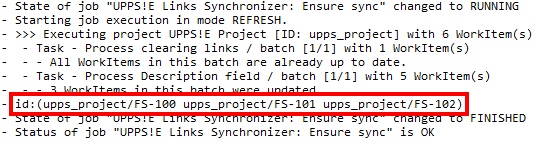
Interfaceis a Lucene query that you can paste into the Polarion work item tracker search to list the updated work items in detail.
Link role dimensions/is dimensioned by
For the following WorkItems:
Own Requirement.

Solution Chatacteristic

Solution Detail

Function

Interface

Property
Test Case

Link role contributes/has a contributor
For the following WorkItems:
Function

Interface
