
User Info
EN | Purpose, features, utilization of the UPPS! Extension WorkItem Hider (WH)
Page overview
What is my appropriate role as a reader?
Any role whose tasks include utilizing Polarion, especially creating Work Item content, such as documentation embedded to LiveDocs.
What should I already know?
Before reading this documentation you should be familiar with creating and editing Work Item content in Polarion.
What will I learn?
After reading this documentation, you will be able to:
- Understand the purpose and concept of the WorkItem Hider.
- Use the Work Item Hider to make selected Work Items in a LiveDoc hideable.
Overview of WorkItem Hider
Documentation is most effective when it is available directly at the point of use. In Polarion, document templates often include help or comment Work Items that guide users when creating or editing Work Items in derived documents.
However, when a document is created from such a template, these help/comment Work Items appear alongside the actual Work Items. In documents with extensive guidance, this can clutter the structure and reduce readability. Deleting the help/comment Work Items improves the overview, but doing so too early may remove valuable guidance that is still needed later.
The WorkItem Hider solves this problem by allowing help and comment Work Items to be shown or hidden as needed, without deleting them.
Use Cases
Show or hide help and comment Work Items
Instructions for use
Define hidablehideable Work Items
In a Polarion project, youadministrators can define once:which Work Items are automatically treated as hideable in project LiveDocs.
The criteria can be based, for example, on:
whichthe Work Itemtypetype,is used for help/comment Work Items, and/orwhicha specific Work Item field value that identifies a Work Item as help or comment content
Optionally,Contact your system or project administrator to configure these criteria for your project.
Once the criteria are configured, you can alsocreate define a field value that marks certainhideable Work Items asin templates.your ThisLiveDocs allowsby:
- using
totheinclude pre-structured Work Items (for example, with predefined tables or partial descriptions) for eachdefined Work Itemtype.types, or - setting the defined field values in your Work Items.
NNIdentify a toggle hideable Work Items
Any Work Item which meets the criteria to be treated as hidable gets a Hide/Unhide icon on the right side of the LiveDoc Editor.
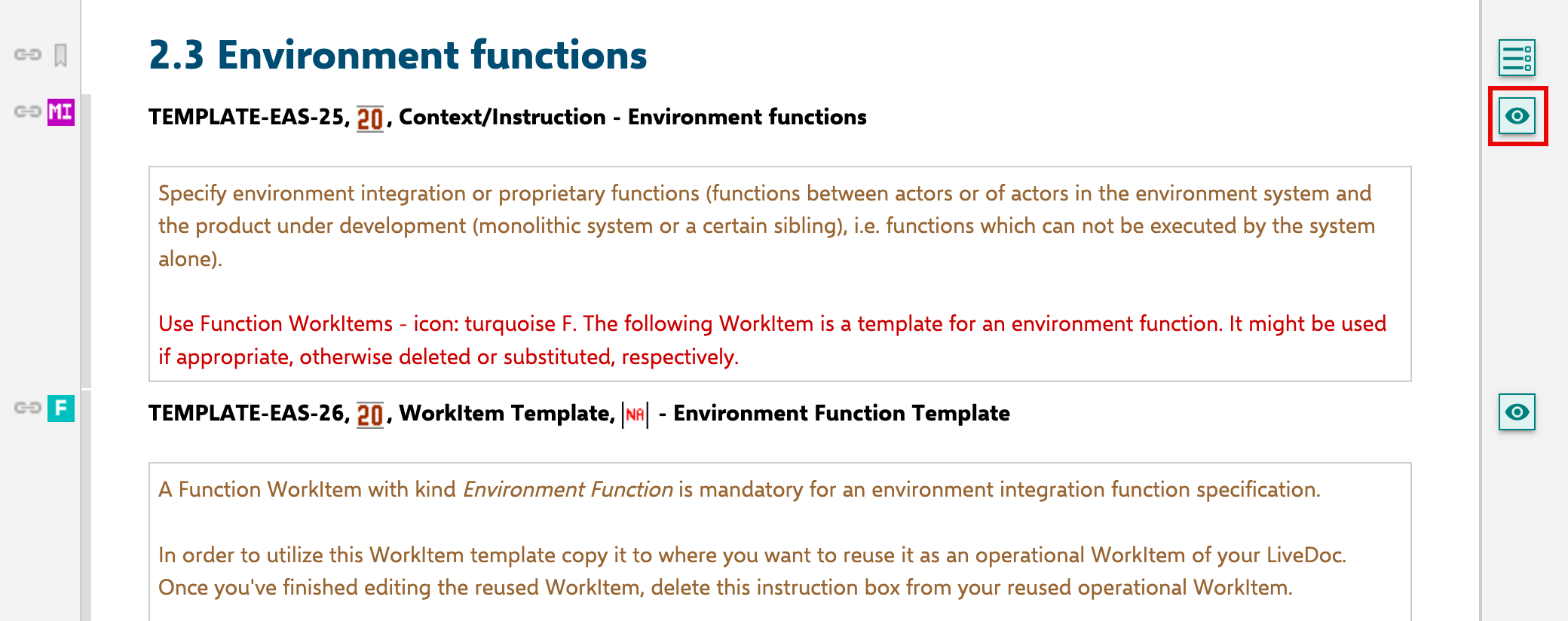
Clicking the Hide/Unhide icon will hide or show the Work Items correspondigly.
Depending on your user settings, the hidden Work Item will
either
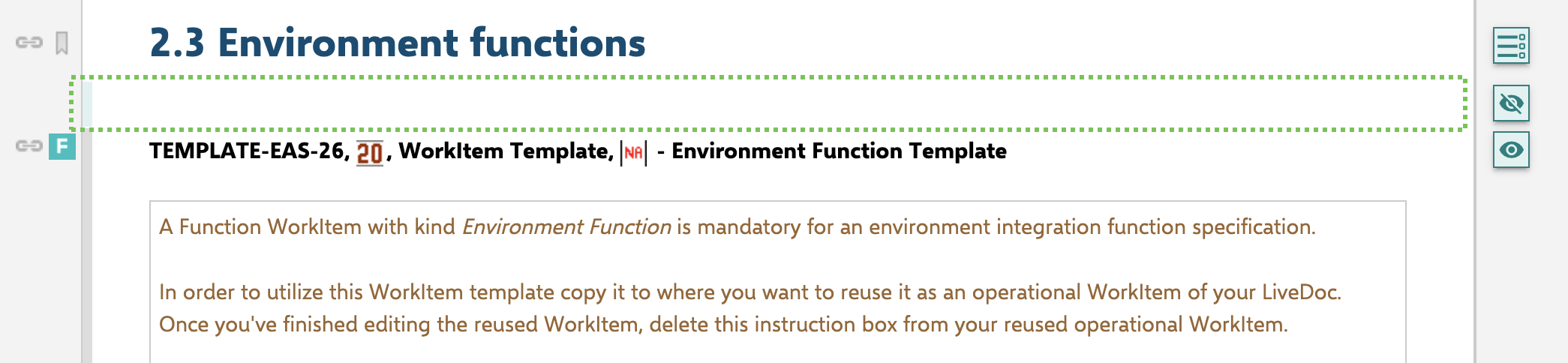
or
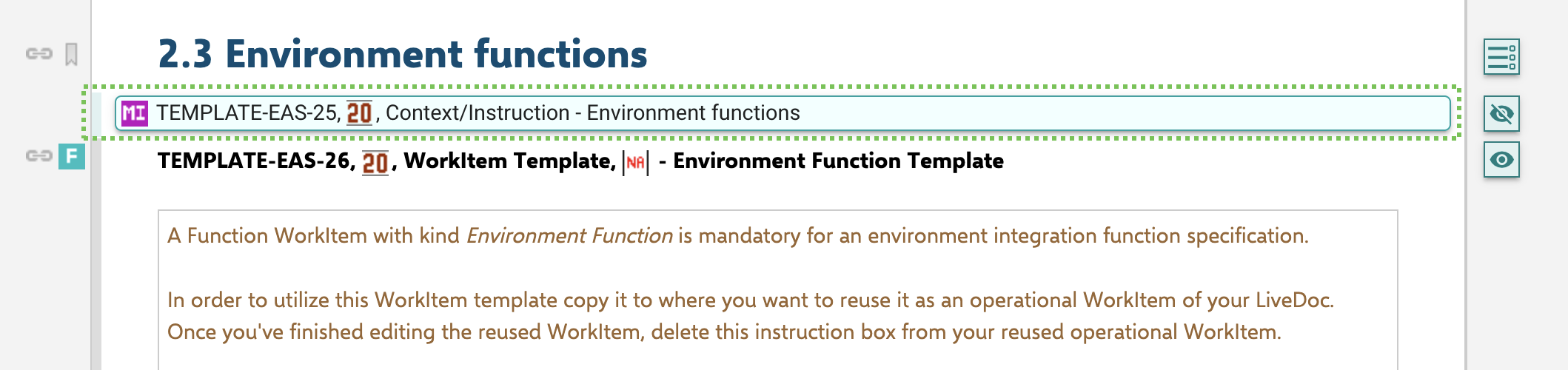
NNFurther actions
Right-If there is at least one hideable Work Item in your LiveDoc, the Work Item Hider MHeading Work Items wiRight-cliking the Hide-Menu button opens a menu with the following options:
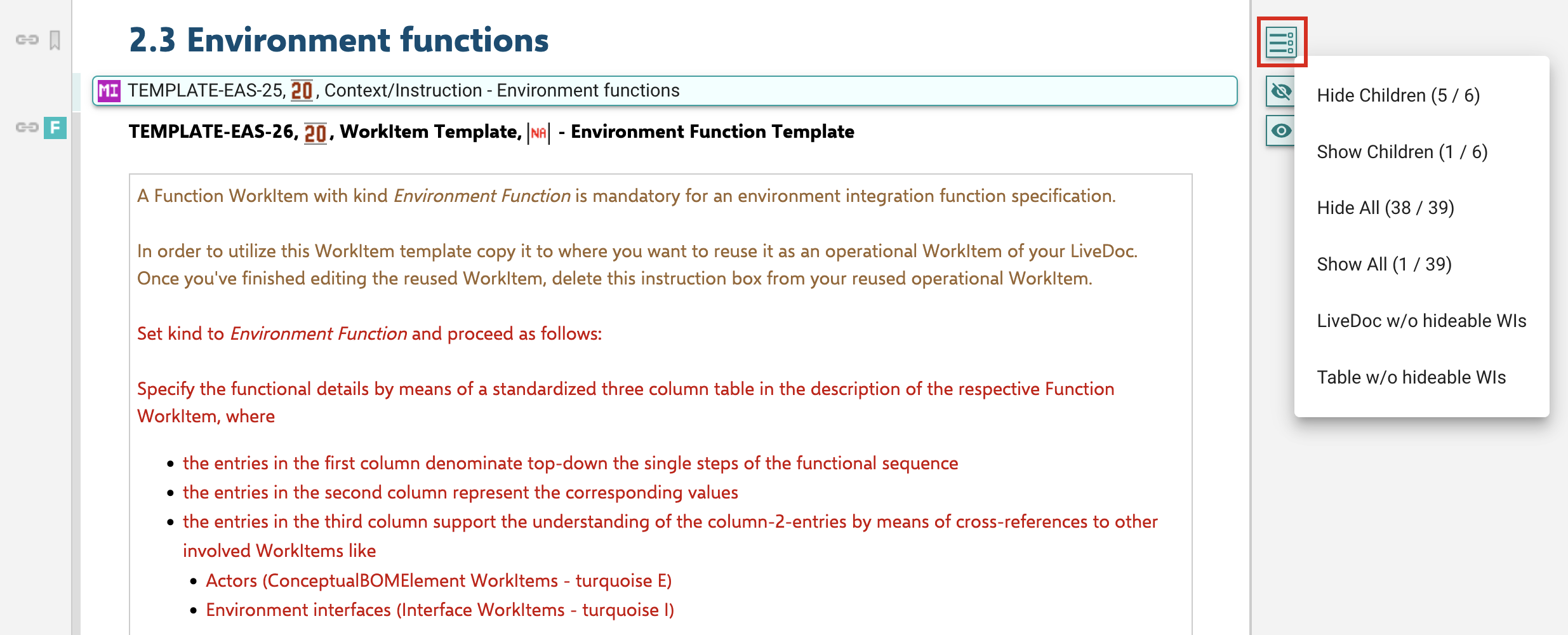
Hide Children:
- Hides all hideable Work Items below the current heading.
Show Children:
- Shows all hideable Work Items below the current heading.
Hide All:
- Hides all hideable Work Items in the current LiveDoc.
Show All:
- Shows all hideable Work Items in the current LiveDoc.
LiveDoc w/o hideable WIs:
- Opens the current LiveDoc in a new tab with all hideable Work Items filtered out.
Table w/o hideable WIs:
- Opens the Table View of the current LiveDoc in a new tab with all hideable Work Items filtered out.
User settings
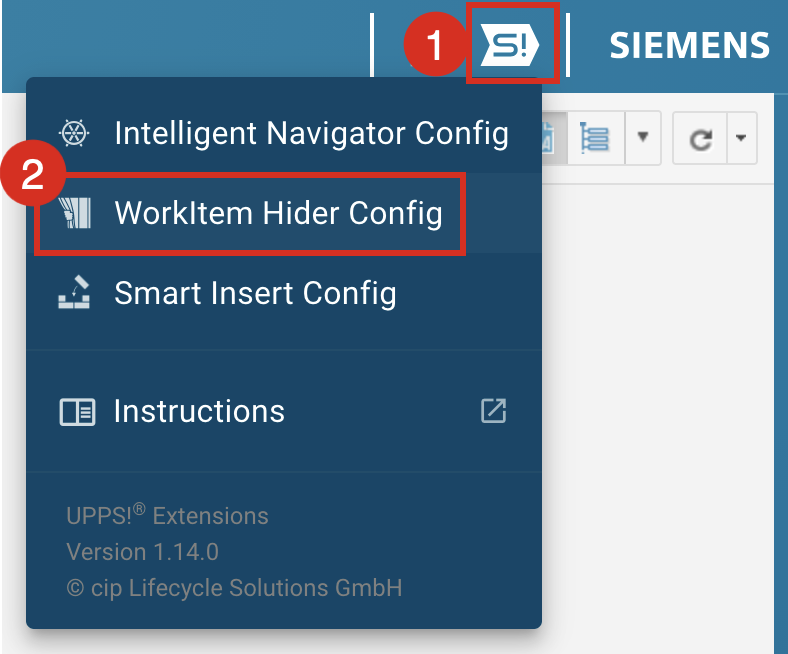
You can configure the WorkItem Hider to match your personal preferences. To access the user settings:
- Open the UPPS! Extensions Menu in the Polarion Navigation Header.
- Select WorkItem Hider Config.
The User Configuration dialog opens, which provides the following user settings:
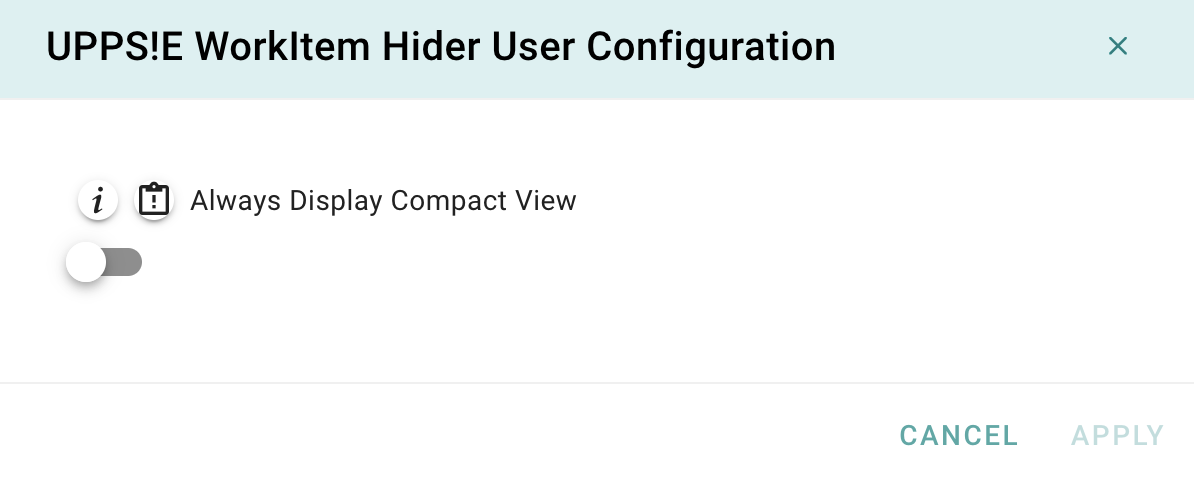 Always Display Compact View:
Settings saved in the User Configuration dialog apply only to the current user and are effective across all projects on the server where the extension is active.