Admin Info
EN | Administrator Guide for the UPPS! Extension License Monitor (LM)
Overview
Who is this documentation for?
This documentation is intended for system or project administrators responsible for managing and using the UPPS! Extension License Monitor (LM).
Prerequisites
Before reading this documentation, you should be familiar with basic Polarion project administration and license management.
What you will learn
After reading this documentation, you will be able to:
- Understand the purpose and concept of the License Monitor.
- Install the License Monitor Extension.
- Use the License Monitor to get an overview of the license assignment and usage on your Polarion server.
Introduction
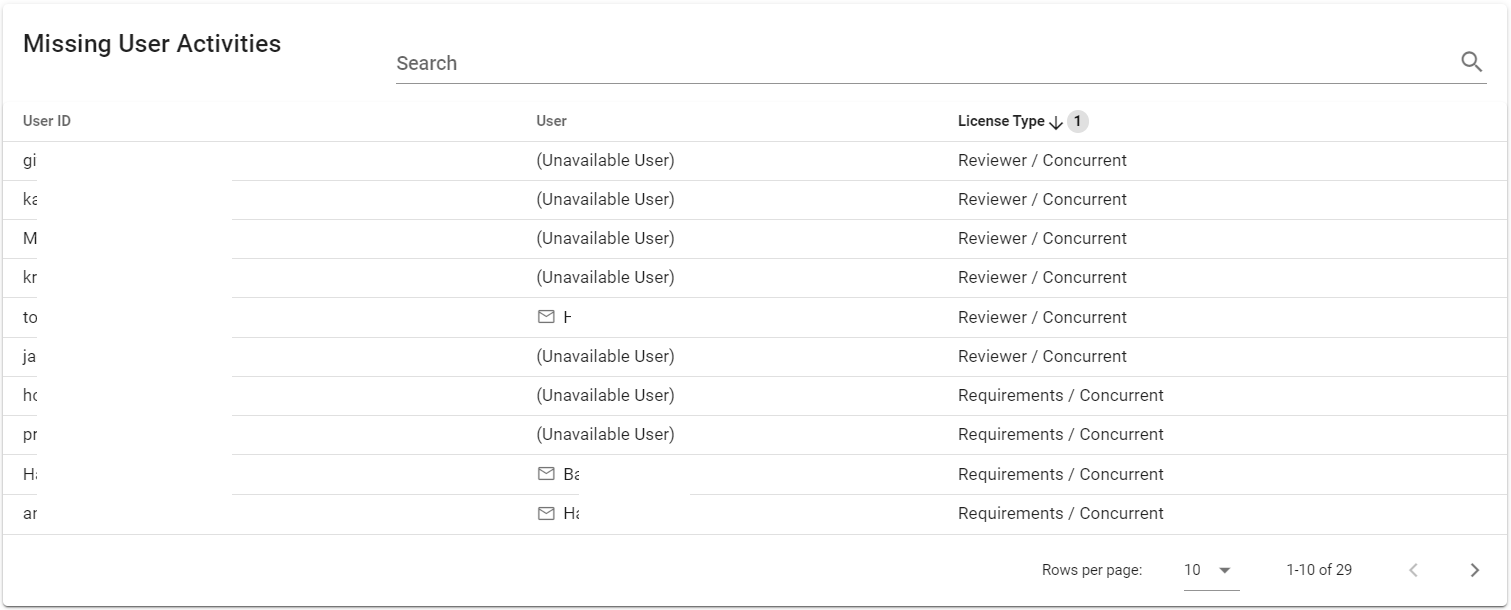
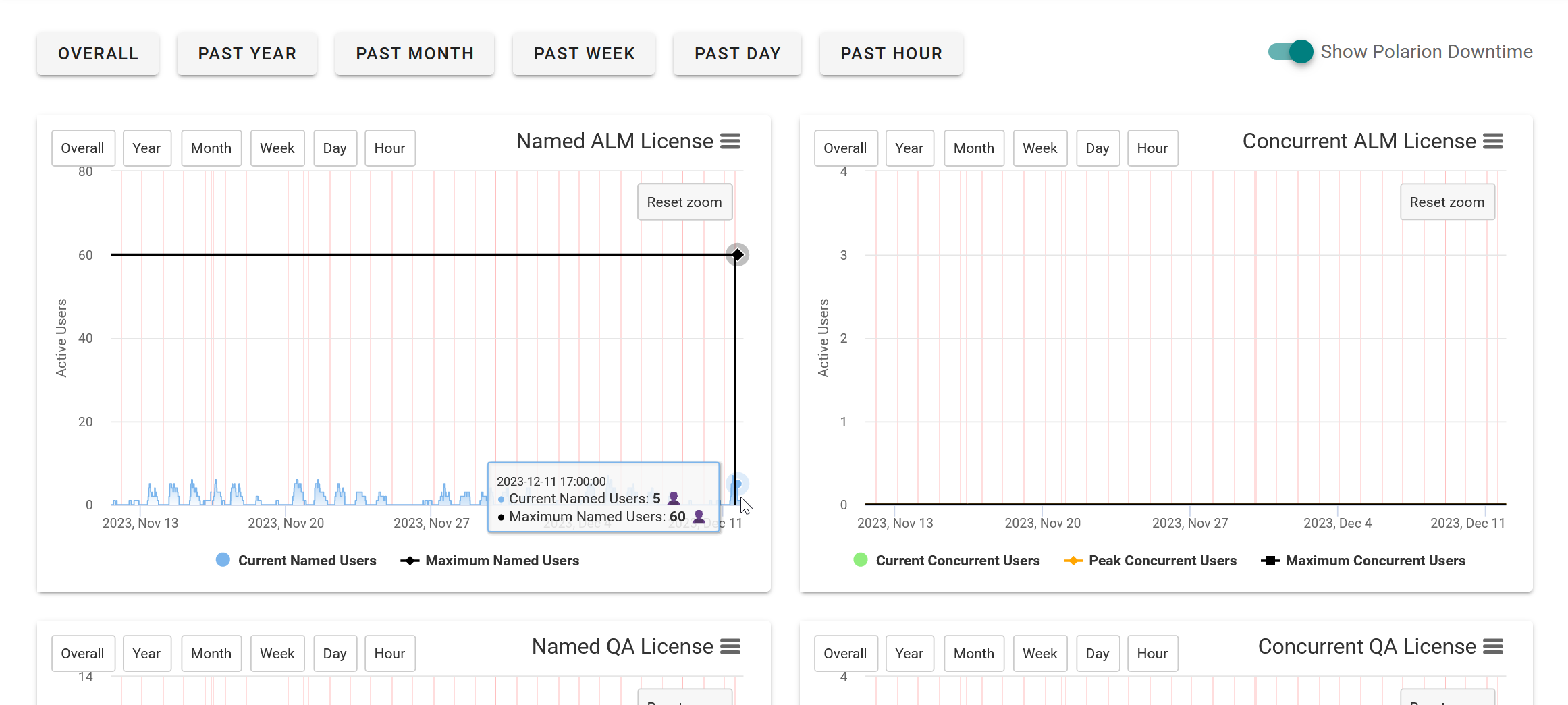
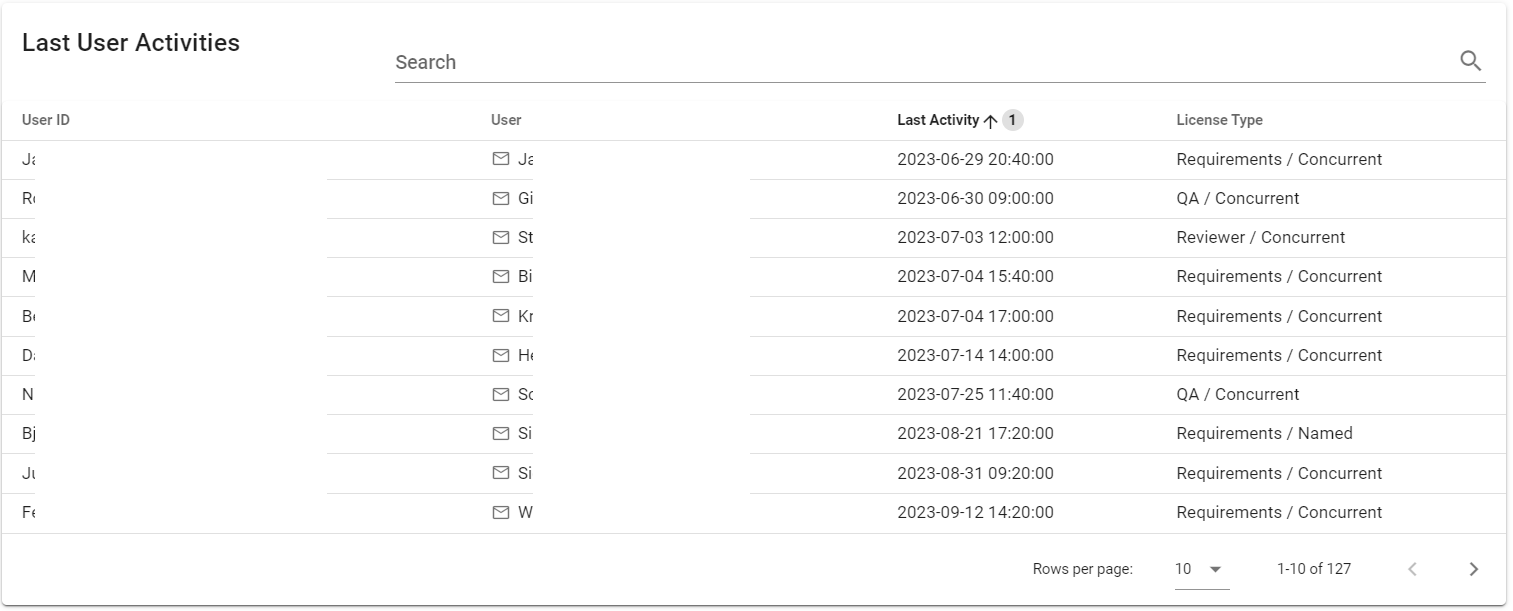
The License Monitor provides visibility into license usage and user activity. It includes charts showing Named and Concurrent license consumption over time, with indicators for maximum license limits and server downtime. Additionally, it offers tables listing each user's most recent login along with their assigned license type, and identifies licensed users who have not yet logged in.
Installation
Directus
The License Monitor requires the installation and integration of Directus.
The UPPS! Extensions installation bundle ships with a Docker Compose file to simplify the installation of Directus.
To use the Docker Compose file, you need to install Docker and Docker Compose on your server. See the official Docker Engine install page for supported systems and installation instructions. Additionally, follow Install the Compose plugin to install Docker Compose.
For the easiest possible setup, install Directus on the same host machine as your Polarion instance. In this configuration, no additional settings are required for the License Monitor to work. You may adjust the configuration for security purposes or to use the License Monitor in a Polarion cluster installation. Contact service@upps-ext.eu for assistance with those settings or for support with a cluster setup.
The necessary files for setting up Directus are contained in the directus.zip file in your installation bundle. Choose an installation location, then follow the steps for your operating system below.
Windows (PowerShell)
Expand-Archive directus.zip
Set-Location directus
# Alternatively try `docker-compose up -d` if the command cannot be found
docker compose up -d
Linux
unzip -X directus.zip # May need installation of the unzip package
cd directus
docker compose up -d # Alternatively try `docker-compose up -d` if the command cannot be found
Polarion
To integrate Polarion with Directus, uncomment or add the following properties in your polarion.properties configuration file.
eu.cipalpha.upps.licensemonitor.directus.host=http://localhost:8055
eu.cipalpha.upps.licensemonitor.directus.token=K4N1TuKSGVkcufy6rUMPBYyIxbqixqJt
eu.cipalpha.upps.licensemonitor.postgre.host=localhost:5431
eu.cipalpha.upps.licensemonitor.postgre.user=directus
eu.cipalpha.upps.licensemonitor.postgre.pw=sutcerid
Start Polarion and add the following scheduler job configuration via Global Administration > Scheduler.
<job
  cronExpression="0 */5 * * * ?"
  disabled="false"
  id="upps.license.monitor.job"
  name="UPPS!E License Monitor Ticker"
  scope="system">
</job>
This instructs Polarion to execute the UPPS! Extension License Monitor job, which records occupied licenses in Polarion and pushes the data to Directus every 5 minutes. It uses the host and token properties you uncommented to identify the Directus host and authenticate against the service. You may modify the cron expression to change the execution interval, but intervals shorter than one minute are not supported.
Instructions for use
Access the License Monitor
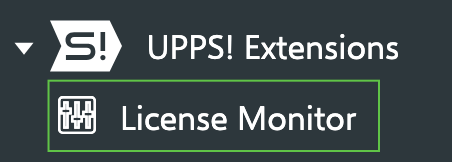
The License Monitor is available in the Global Administration area of your Polarion server. To access it, navigate to the UPPS! Extensions menu in the navigation sidebar and select License Monitor.
In the License Monitor you will find the following three sections, which are described in detail in the next chapters:
- License Activity Charts
- Last User Activities
- Missing User Activities
License Activity Charts
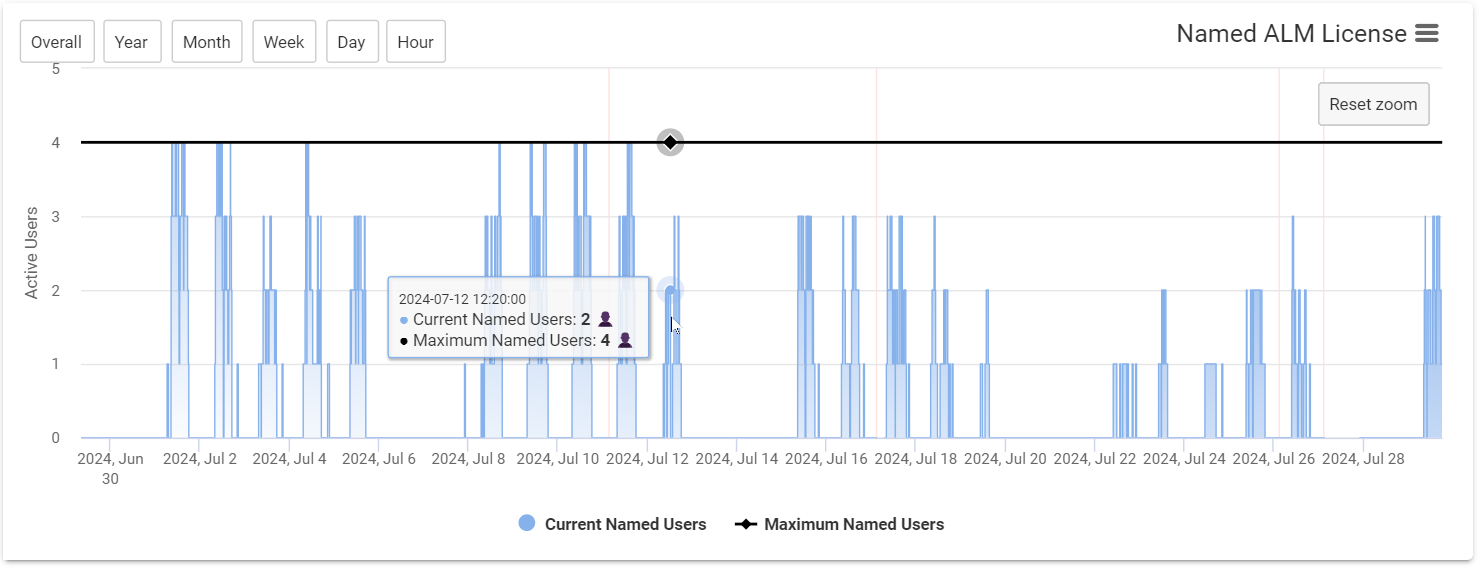
For each Polarion license type, the charts display license usage for the Named and Concurrent license kinds:
- The colored area shows the number of licenses in use
- Blue: Named licenses
- Orange: Concurrent licenses
- The black line indicates the maximum number of available licenses for that type and kind
- A light red background indicates periods when the Polarion server was offline
Last User Activities
This table shows the most recent login time for each user.
The License type column indicates the license assigned to the user at the time the activity was recorded.
Missing User Activities
This table lists users who have been assigned a license but have no recorded login time yet.
The License type column indicates the license currently assigned to the user in the Polarion license file.