Admin Info
EN | UtilizationAdministrator ofGuide for the UPPS! Extension License Monitor (LM)
Page overviewOverview
WhatWho is mythis appropriatedocumentation role as a reader?for?
AnyThis roledocumentation whoseis tasksintended includefor administrationsystem ofor Polarionproject licenses.administrators responsible using the UPPS! Extension License Monitor (LM).
What should I already know?Prerequisites
Before reading this documentationdocumentation, you should be familiar with thebasic conceptPolarion project administration and administrationlicense of Polarion licenses.management.
What you will I learn?learn
After reading this documentation, you will be able to:
- Understand the purpose and concept of the License Monitor.
- Use the License Monitor to get an overview of the license assignment and usage on your Polarion server.
Overview of License MonitorIntroduction
The License Monitor provides visibility into license usage and user activity. It includes charts showing Named and Concurrent license consumption over time, with indicators for maximum license limits and server downtime. Additionally, it offers tables listing each user’s most recent login with their assigned license type, and identifies licensed users who have not yet logged in.
Instruction for Use
Access the License Monitor
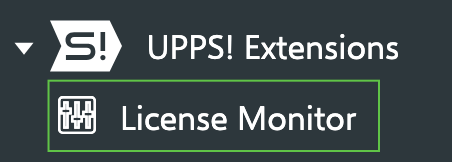
The License Monitor is available in the Global Administration area of your Polarion server. To access it, navigate to the UPPS! Extensions menu in the navigation sidebar and select License Monitor.
In the License Monitor you will find the following three sections, which are described in detail in the next chapters:
- License Acticity Charts
- Last User Activities
- Missing User Activities
License Activity Charts
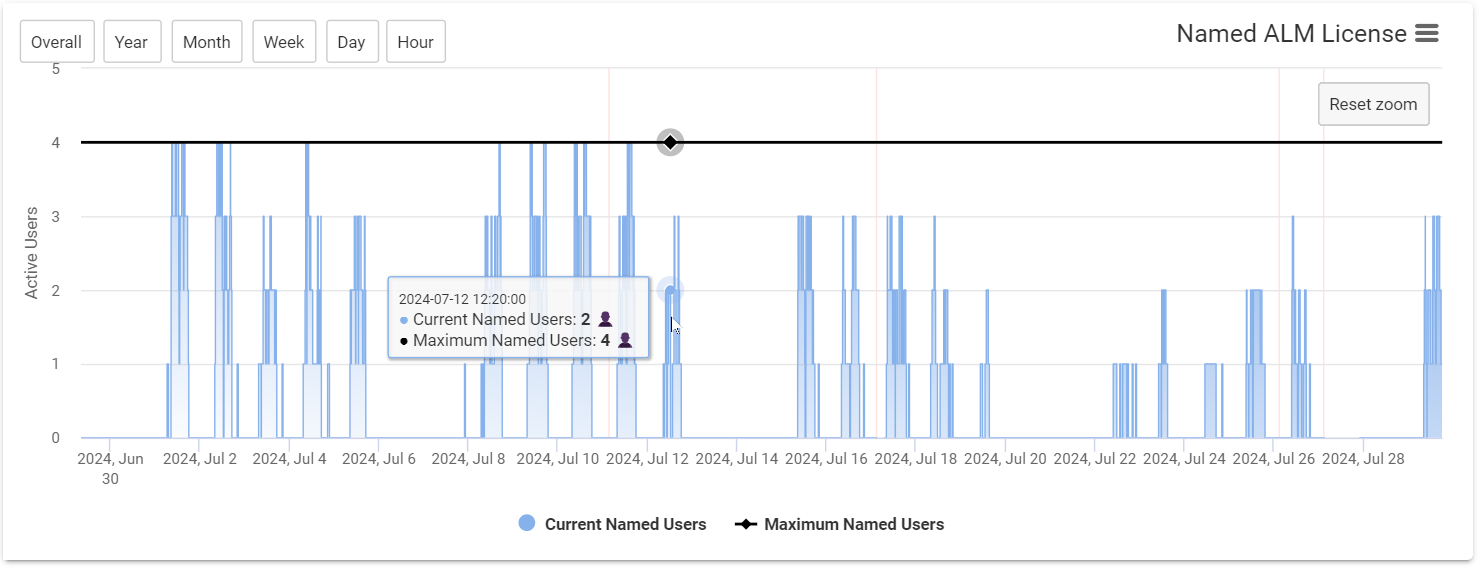
For each Polarion license type, the charts show license usage for the Named and Concurrent license kinds:
- The colored area shows the number of licenses in use
- Blue: Named licenses
- Orange: Concurrent licenses
- The black line indicates the maximum number of available licenses for that type and kind
- A light red background area indicates periods when the Polarion server was offline
Last User Activities
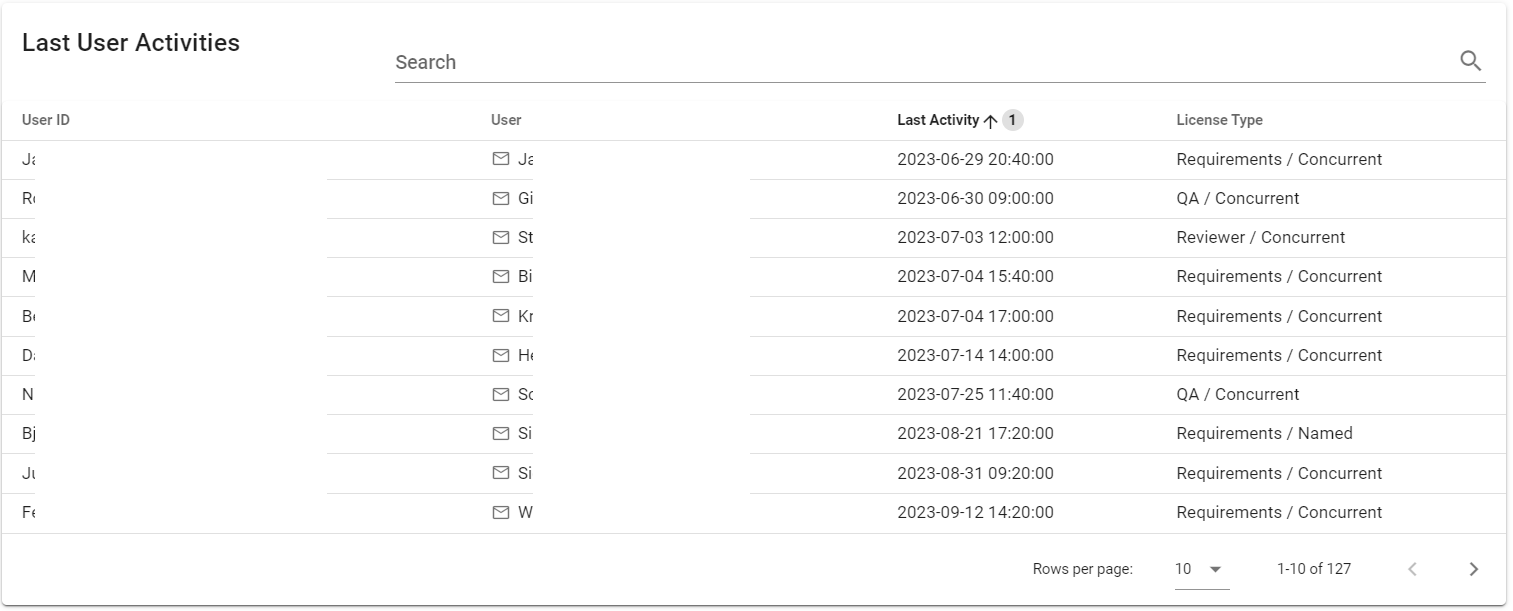
This table shows the most recent login time for all users.
The License type column indicates the license assigned to the user at the time the activity was recorded.
Missing User Activities
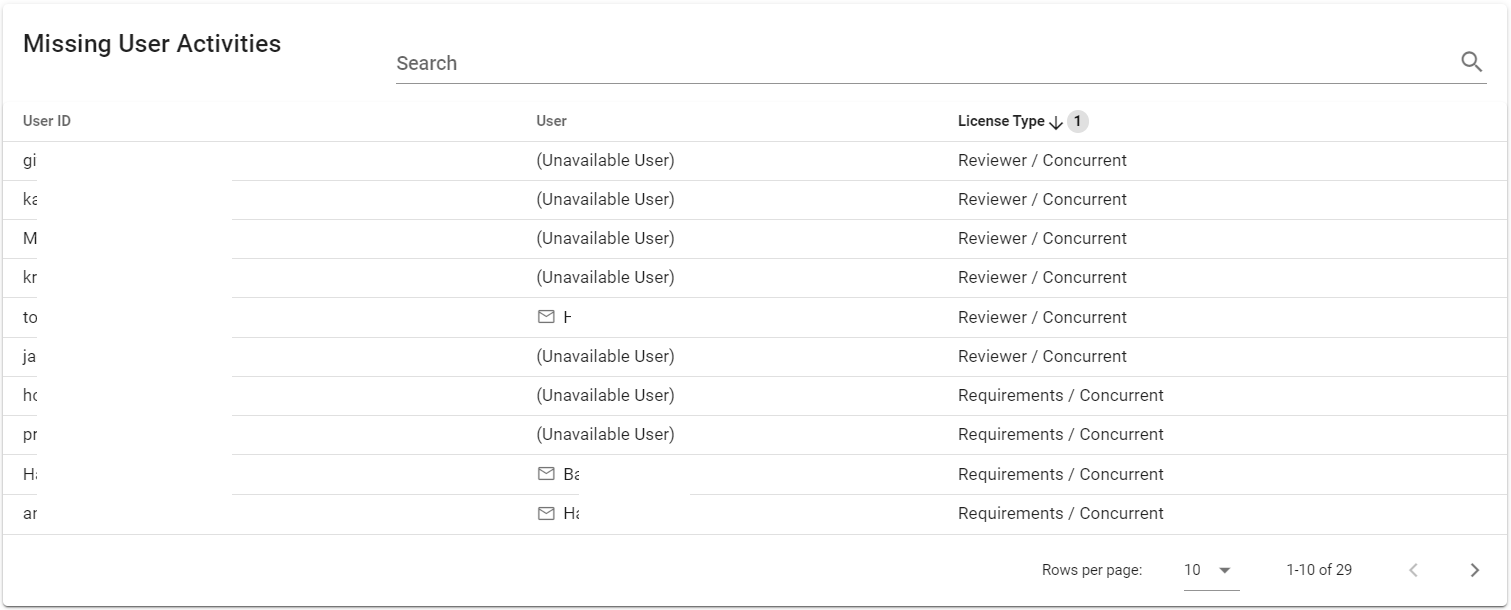
This table lists users who have been assigned a license but do not yet have a recorded login time.
The License type column indicates the license currently assigned to the user in the Polarion license file.