Admin Info
EN | Administrator Guide for Configuring the UPPS! Extension Reminder Email Organizer (RO)
Overview
Who is this documentation for?
This documentation is intended for system or project administrators responsible for configuring the UPPS! Extension Reminder Email Organizer (RO).
Prerequisites
Before reading this documentation, you should be familiar with basic Polarion project administration.
What you will learn
After reading this guide, you will be able to configure the behavior and functionality of the Reminder Email Organizer, either globally across all projects on the server, or for specific projects individually.
Introduction
Polarion’s standard email notifications can quickly overwhelm users with large volumes of messages that are difficult to distinguish and prioritize.
The Reminder Email Organizer consolidates these notifications into a single, structured reminder email per user on specified days and time. Each reminder email contains Polarion-relevant objects, such as Work Items, Live Documents, or Test Runs, grouped into configurable categories and presented with concise summaries and direct links into Polarion.
How reminder emails work:
- Each recipient receives one reminder email per configured day.
- The email contains objects relevant to that user from all Polarion projects in the repository.
- Objects are grouped by categories, each defined by a query condition.
- Within each category, objects are further grouped by their originating project.
- Tables in the email include hyperlinks that open the objects directly in Polarion (for example in the Work Item Editor).
This structure allows recipients to quickly review their responsibilities and navigate directly to the relevant Polarion content.
Configuration
Scope
Reminder email categories, including recipients, dispatch days, and display settings, can be configured at:
-
Global level (applies to all projects)
-
Project level (applies only to a specific project)
The Reminder Email Organizer configuration page guides administrators through the setup.
Step 1: Open the Configuration Page
To acess the configuration page either at global or project level, navigate to the UPPS! Extensions menu in the navigation sidebar and select Reminder Email Organizer.
Step 2: Define Global Email Settings
At global level, configure the following:
- Email Sender: Email adress used as the sender of reminder emails.
- Email Subject: Subject line of the reminder emails.
- Email Delay: Delay between the scheduled send time and the actual dispatch.
Step 3: Configure Categories
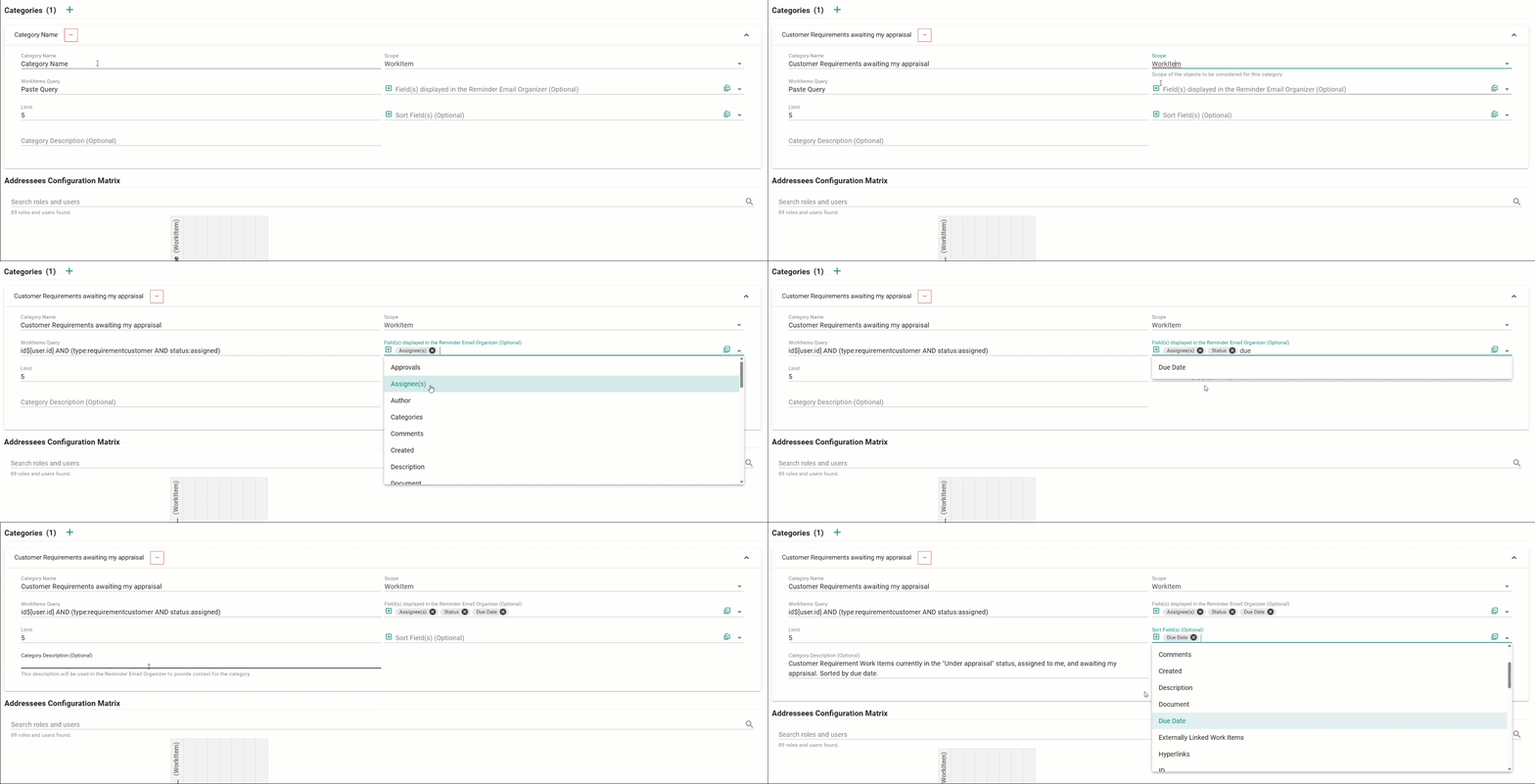
Categories define which Polarion objects appear in reminder emails. Configure email categories at global or project level by filling out the following fields:
- Category Name: Descriptive name shown in the email.
- Scope: Select which Polarion object type to search: Work Item, LiveDoc, or Test Run.
- Query: Query retrieving the selected object type.
- Field(s) displayed in the Reminder Email: Fields shown as columns in the email table.
- Limit: Maximum number of objets shown in the table.
- Sort Field(s): Fields used to sort the table.
- Category Description: Optional explanatory text shown in the email.
Step 4: Define Recipients and Dispatch Days
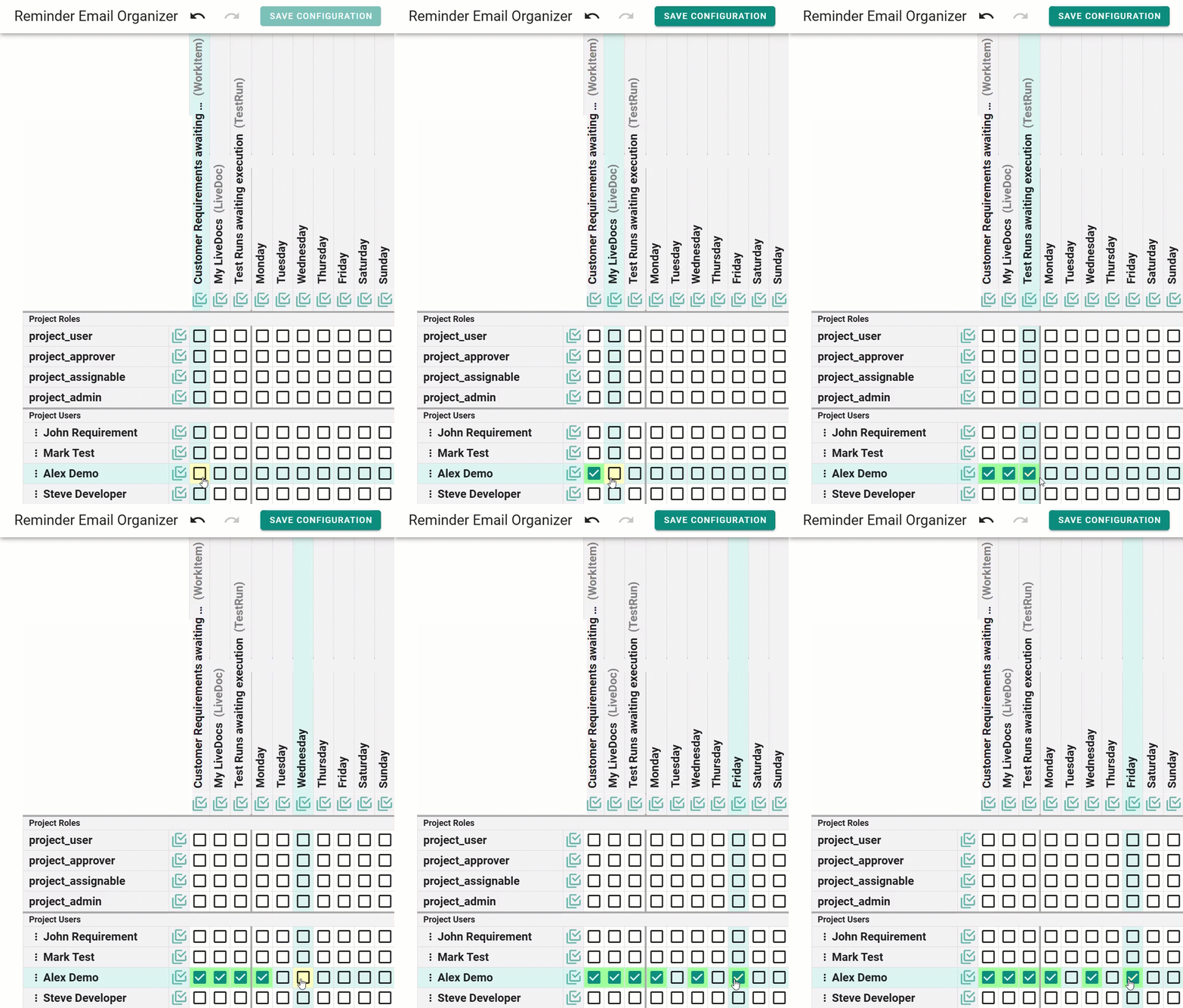
For each category:
- Select the recipients
- Select the days of the week when reminders should be sent.
Configuration is done via checkboxes.
Step 5: Define Dispatch Time
The dispatch time is defined once globally for all reminder emails.
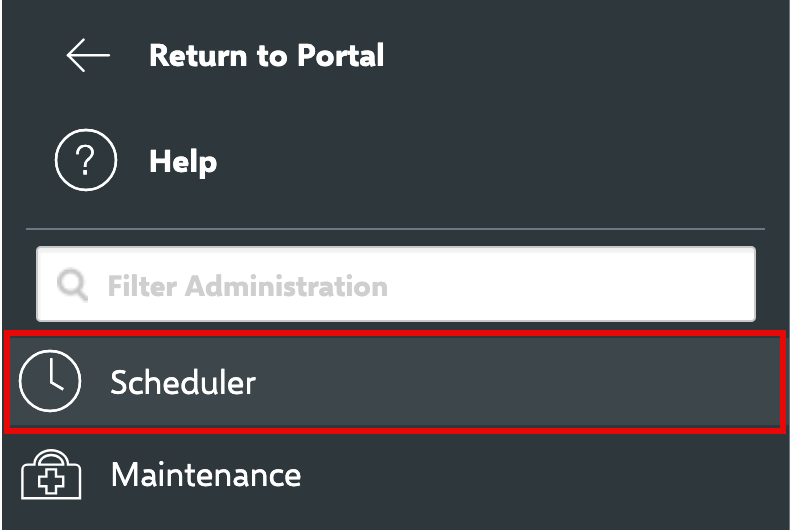
To schedule reminder email dispatch, add the following entry to the Scheduled Job Configurations field in the Scheduler of the Polarion Global Administration.
<job
    cronExpression="0 0 23 ? * *"
    disabled="false"
    id="upps.email.reminder.job"
    name="UPPS!E Reminder Email Organizer"
    scope="system"
/>
Where cronExpression specifies the schedule for the job. In this example, the Reminde Emails are sent every specified day at 23:00 (11:00 PM).
Example of Reminder Email
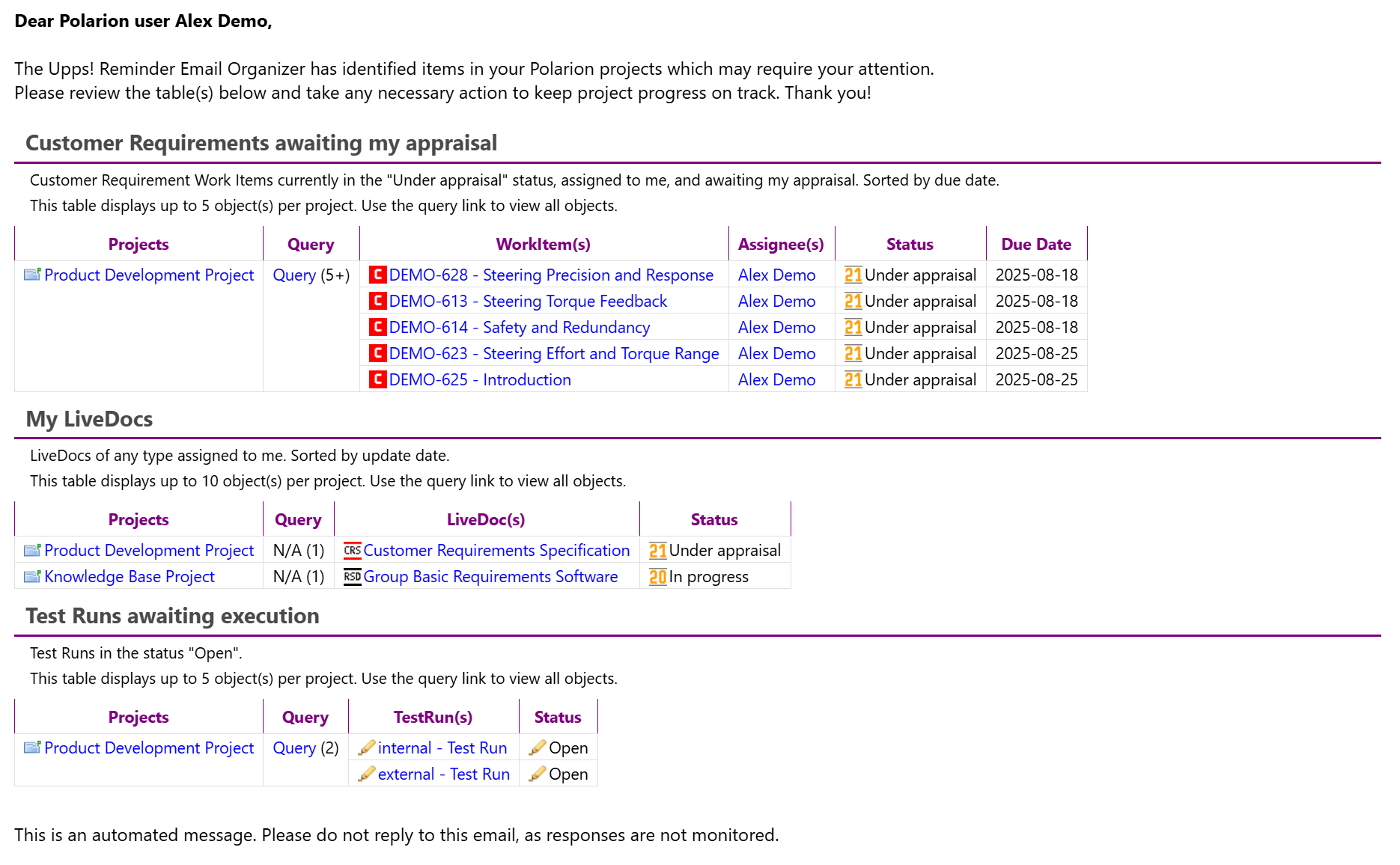
The following screenshot displays an example of a Reminer Email sent to the user Alex Demo, which contains three categories:
- Customer Requirements awaiting my appraisal
- My LiveDocs
- Test Runs awaiting execution