
Admin Info
EN | Administrator Guide for Configuring the UPPS! Extension WorkItem Hider (WH)
Overview
Who is this documentation for?
This documentation is intended for system or project administrators responsible for configuring the UPPS! WorkItem Hider (WH) in Polarion.
Prerequisites
Familiarity with basic Polarion project administration is required before following this guide.
What you will learn
After completing this guide, you will be able to configure the WorkItem Hider for individual Polarion projects, including defining which Work Items can be hidden.
Introduction
In Polarion, document templates often include help or comment Work Items that guide users when creating or editing Work Items in derived documents. When a document is created from such a template, these help and comment Work Items appear alongside the actual content.
In documents with extensive guidance, this can clutter the structure and reduce readability. Deleting help or comment Work Items improves clarity, but doing so too early may remove guidance that is still needed.
The WorkItem Hider solves this problem by letting you show or hide help and comment Work Items on demand — without deleting them.
Configuration
Scope
The WorkItem Hider can only be activated and configured by an administrator, and only at the project level.
Step 1: Open the Configuration Page
To access the WorkItem Hider configuration for a project:
- Open the Polarion administration area for the relevant project.
- In the navigation sidebar, go to UPPS! Extensions.
- Select WorkItem Hider from the menu.

Step 2: Define the Hideable WorkI Items Query
The Hideable WorkItems Query field determines which Work Items are eligible to be hidden. Work Items matching this query will be indicated by a Hide/Unhide icon in the LiveDoc Editor view of the corresponding LiveDoc.
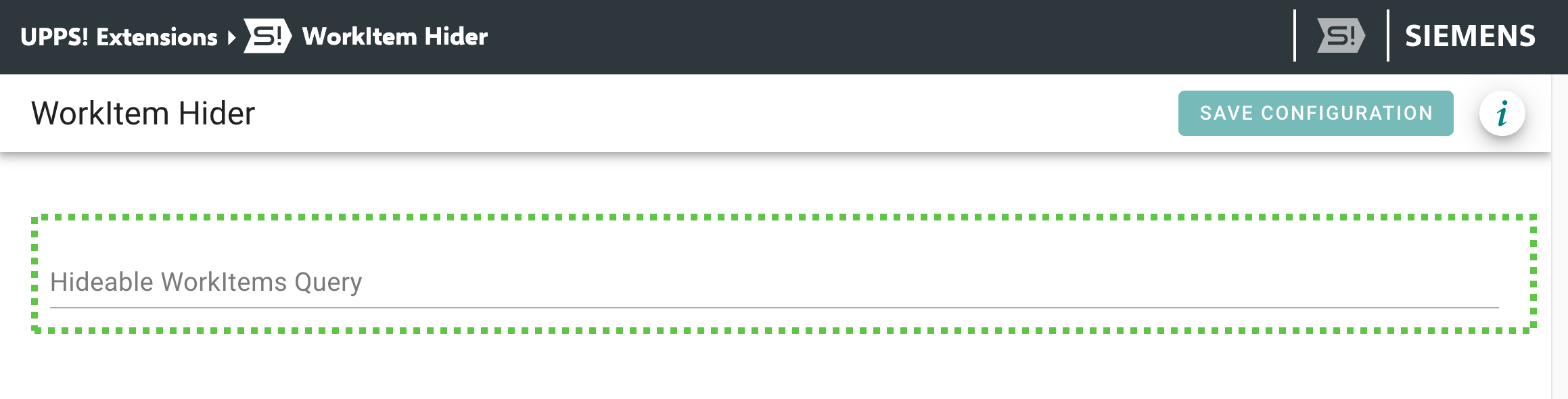 The field accepts any Work Item query that can be created in the Polarion Query Builder. To set up the query:
- Open the WorkItem Query Builder and build your desired query
- Click the small caret (▾) at the right end of the input field to open the context menu.
- Select Convert to Text in the upper-right corner of the context menu.
- Copy the resulting text and paste it into the Hideable WorkItems Query field.
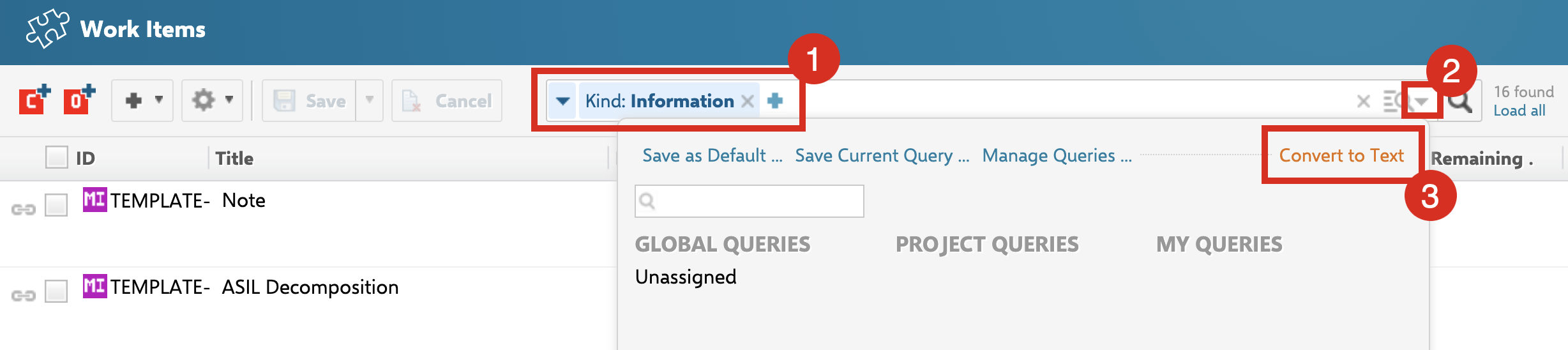
Only Work Items matched by this query will display the Hide/Unhide icon in LiveDoc Editor. Work Items not matched by the query remain unaffected.