
Admin Info
EN | Administrator Guide for Configuring the UPPS! Extension Intelligent Navigator (IN)
Overview
Who is this documentation for?
This documentation is intended for system or project administrators responsible for configuring the UPPS! Extension Intelligent Navigator (IN).
Prerequisites
Before reading this documentation, you should be familiar with basic Polarion project administration.
What you will learn
After reading this documentation, you will be able to configure the behavior and functionality of the Intelligent Navigator for specific projects individually.
Introduction
Preview linked and cross-referenced Work Items on hover
When hovering over a link or Cross-Reference, the content of the linked Work Item is displayed in the Preview Window. This allows users to review Work Item links and references without following them, so neither the current Work Item nor the document in focus needs to be left.
Configuration
Scope
The Intelligent Navigator can only be activated and configured by an administrator, and only at the project level.
Step 1: Open the Configuration Page
To access the Intelligent Navigator configuration for a project:
- Open the Polarion administration area for the relevant project.
- In the navigation sidebar, go to UPPS! Extensions.
- Select Intelligent Navigator from the menu.
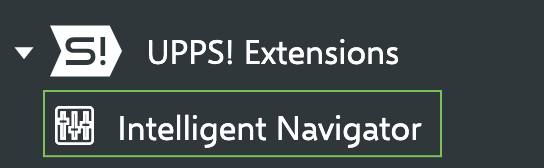
Step 2: Configure Preview Windows
TBD